










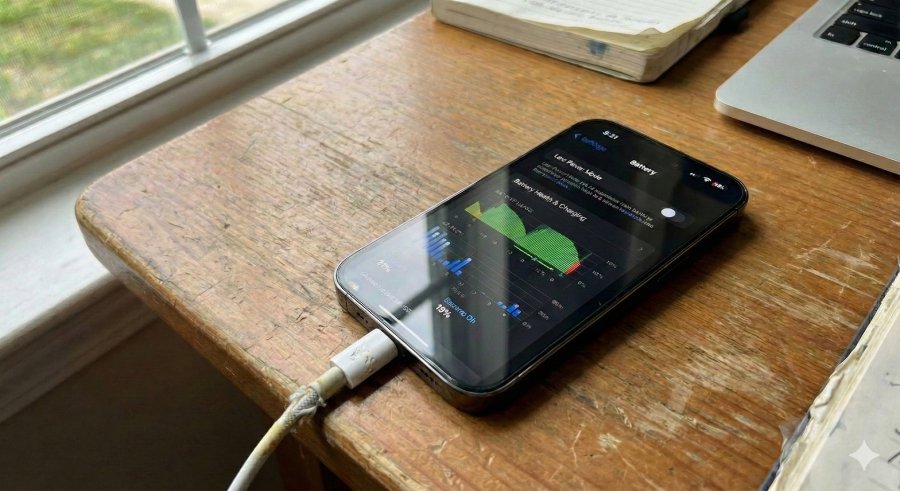
iPhones are faster, brighter, and more capable than ever… but many still struggle to make it through a full day.
Battery drain doesn’t always come from heavy use; sometimes it comes from features working in the background when you don’t need them. The good news? You don’t need to delete apps or change how you use your phone to get better battery life.
The following are seven iPhone settings you can adjust to cut excessive power drain and help your battery last longer.
1. Auto-Brightness
Your iPhone’s display is one of the biggest battery hogs, and Auto-Brightness exists to keep it from working harder than it needs to. Instead of blasting the screen at the same intensity all day, the feature uses ambient light sensors to adjust brightness on the fly — dimming indoors, brightening outdoors, and reacting faster than most people can manually.
When Auto-Brightness is turned on, your screen spends far less time at unnecessarily high brightness levels, resulting in lower power draw. Over the course of a day, especially if you move between different lighting conditions, those small adjustments add up to meaningful battery savings.
2. Low Power Mode
Low Power Mode is Apple’s built-in safety net for when your battery starts slipping faster than expected. It temporarily dials back things like background activity, visual effects, and performance spikes so your iPhone can focus on the essentials instead of doing extra work.
Turning on Low Power Mode reduces how often apps refresh, how hard the processor works, and how bright the screen gets behind the scenes. The result isn’t dramatic in any one area, but together those cutbacks can buy you hours of extra battery life, especially on long days when charging isn’t an option.
3. Optimized Battery Charging
Keeping your iPhone plugged in overnight feels harmless, but leaving it at full charge for hours can slowly wear down the battery. Optimized Battery Charging is designed to reduce that stress by learning your daily charging routine and holding the battery at a lower level until it actually needs to top off.
By avoiding long stretches at 100%, your battery stays healthier over time, which means it holds a charge better as the months go by. It won’t give you extra hours today, but it helps prevent the gradual decline that makes phones feel “old” far sooner than they should.
4. Background App Refresh
A lot of apps don’t wait for you to open them before getting to work. Background App Refresh lets apps update content in the background, so feeds load faster and notifications feel more current when you tap in.
When too many apps are allowed to refresh whenever they want, your device ends up waking itself up far more often than necessary. Turning this setting off or limiting it to Wi-Fi cuts down on constant background activity, reducing battery drain without breaking how most apps function day to day.
5. 5G Auto
5G Auto is designed to balance speed and power by deciding when your iPhone should use 5G and when it should fall back to LTE. It works well in strong 5 G coverage, but in areas with uneven 5G signals, the phone can work harder than necessary to maintain a connection.
In weak-signal situations, choosing LTE can actually lead to a steadier connection while using less power. By avoiding repeated network hunting and handoffs, your iPhone spends less time using its radios, helping conserve battery without noticeably affecting everyday browsing or messaging speeds.
6. Notifications and Mail fetch
Every notification that pops up and every email that checks for new messages wakes your device up, even if only for a moment. Notifications and Mail fetch settings control how often your screen lights up and how often your phone connects to servers in the background.
By trimming non-essential notifications and switching Mail to fetch on a schedule rather than constantly pushing updates, you reduce repeated wake-ups and background checks. The phone stays idle more often, which translates into fewer surprises when you check your battery later in the day.
7. System and keyboard haptics
Those subtle taps you feel when typing or moving around iOS come from haptic feedback built into the system and keyboard. They’re there to make interactions feel more responsive, even though most people stop noticing them after a while.
Each tap takes a small amount of power, and if you’re typing messages all day or constantly moving between apps, those taps add up. Turning off system and keyboard haptics won’t change how your phone works, but it can trim some needless battery use.
Small tweaks, longer days
A fast-draining battery is one of the most common iPhone complaints, but it doesn’t have to be. A few thoughtful tweaks can stretch your charge and reduce that low-battery anxiety without disrupting your routine.
Better battery life doesn’t come from obsessing over percentages or blindly turning features off. It’s about deciding which conveniences are worth the tradeoff and letting everything else stay out of the way while your phone gets through the day.
Deposits from Apple’s $95 million Siri eavesdropping settlement are starting to appear, though individual payouts are far smaller than many expected.


