







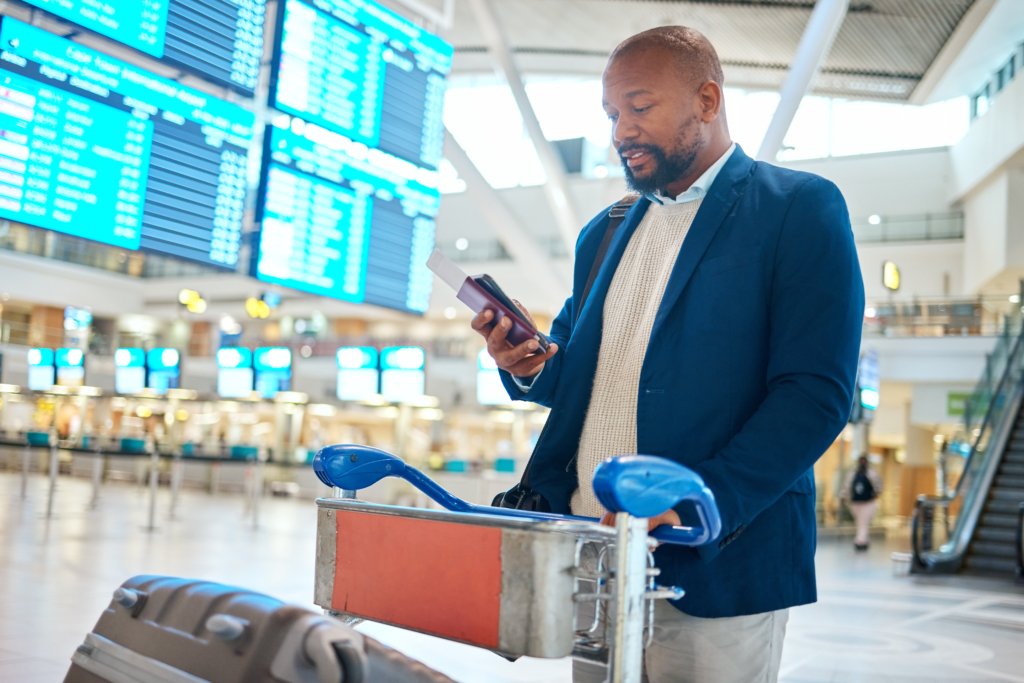
Holiday travelers have a faster option at airport security as Apple Wallet and Google Wallet roll out passport-based digital IDs accepted at select TSA checkpoints. The tap-to-verify setup lets flyers confirm their identity straight from their phones.
ABC News reports that the new mobile IDs are now in use across more than 250 participating lanes nationwide, arriving just as the holiday rush builds. The expansion gives TSA a real-world preview of how smoothly phone-based IDs can scale.
The setup steps depend on the device you carry
Each platform handles mobile ID creation in its own way, and travelers will need to follow the flow built for their device.
How to set up a digital ID on Apple devices
Apple’s system builds the Digital ID straight from your passport, storing it in Wallet for tap-to-verify use at TSA checkpoints. Once the ID is authenticated on the device, travelers can present it with a quick double-tap. To get the feature up and running on an iPhone, follow these steps:
- Open the Wallet app on your iPhone and follow the prompts to add your passport information.
- Complete the on-device authentication to confirm your identity.
- Double-tap the side button on your iPhone at TSA to activate the Digital ID.
- Approve the on-screen prompt before tapping your phone against the scanner.
- Travelers using an Apple Watch can perform the same tap-to-verify action from the watch interface.
Apple says the information shared during the scan is encrypted on the device, and companies can’t track where the ID is used or what data is passed.
How to set up a digital ID on Android devices
Google Wallet’s ID Pass builds a mobile credential directly from a US or UK passport, using on-device checks to verify identity before anything can be shared at TSA. The setup requires a brief scan of both the passport and its embedded security chip. To get started on Android, follow these steps:
- Open the Google Wallet app on your Android device and select Add to Google Wallet.
- Choose ID Pass and tap Get started.
- Scan the passport’s info page using your phone’s camera.
- Hold your device to the passport’s NFC chip — inside the back cover for US passports, or the front cover for UK passports — to capture secure data.
- Record a short verification video to confirm your identity.
- Submit the verification and wait for the confirmation notice that the ID Pass is ready in Google Wallet.
Google notes that the ID Pass is encrypted in Wallet, with all shared information authenticated on-device and fully under the user’s control.
Key rules that apply to Apple and Google digital IDs
TSA’s mobile ID program still comes with clear boundaries.
Neither Apple’s Digital ID nor Google’s ID Pass can be used for international travel, and passengers must continue carrying a physical form of identification. Both systems rely on on-device authentication at the checkpoint, requiring travelers to unlock their phones before any information is shared.
Apple’s version needs iOS 26 and works on both iPhone and Apple Watch, while Android users need a device running Android 9 or higher with Google Wallet enabled.
TSA also accepts mobile driver’s licenses from 17 states, adding another digital option beyond the passport-based versions.
For now, digital IDs remain optional, but they’re beginning to show how security and speed can coexist at the checkpoint.
Google has opened a new lane between Android and iPhone by letting Pixel 10 devices trade files directly with Apple’s ecosystem over a private peer-to-peer connection.


