










Most of us use our PCs the same way we always have: click, type, drag, repeat.
But Windows 11 has quietly been adding a layer of artificial intelligence underneath everything you do, and a lot of it is genuinely useful. Whether you’re trying to get more done at work, make your photos look better, or just find that file you definitely saved somewhere, there’s probably an AI tool already sitting in your taskbar waiting to help.
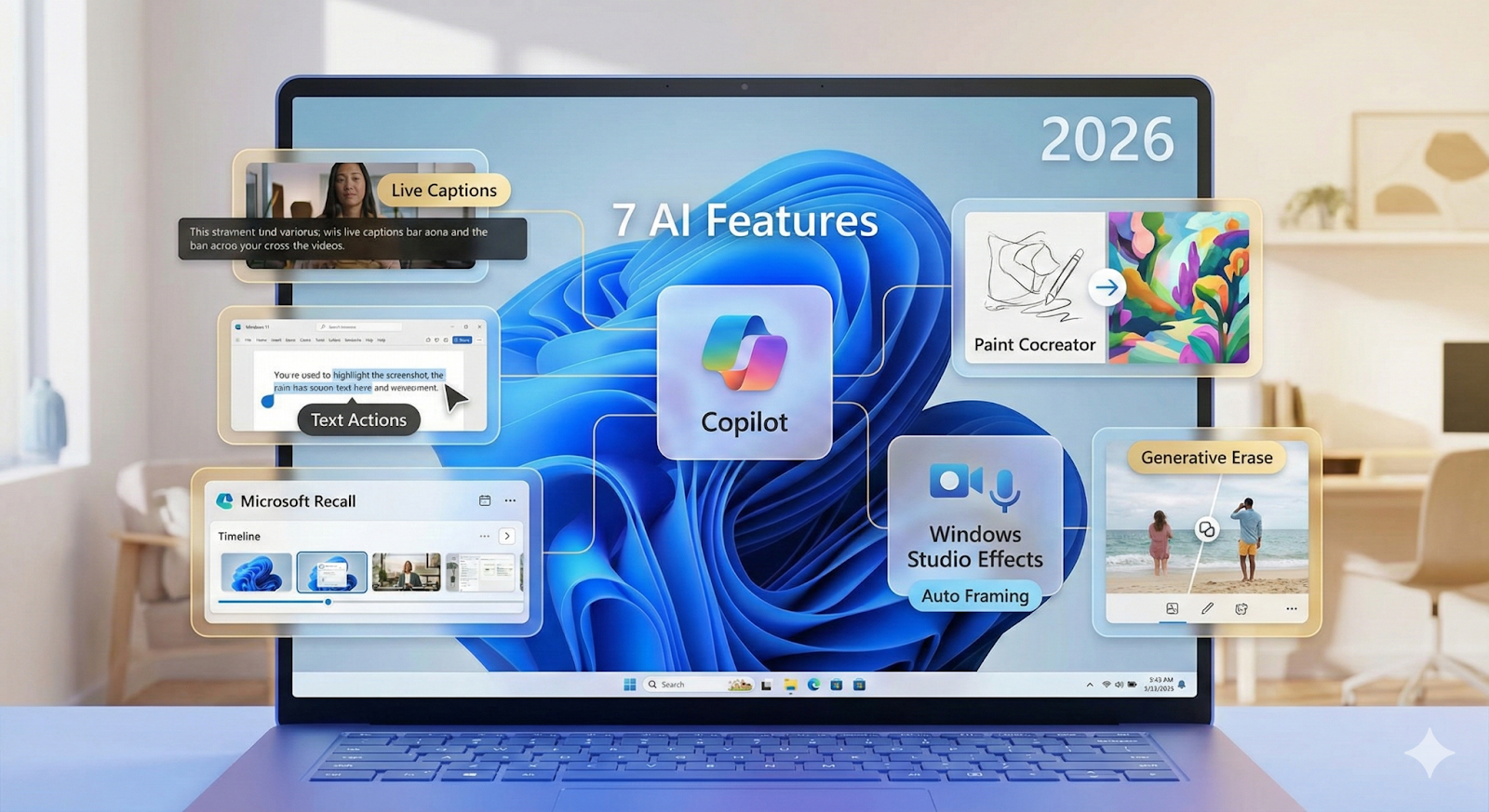
Here are seven Windows 11 AI features you should actually be using.
Copilot: Your built-in AI assistant
Copilot sits at the center of Windows 11’s AI experience. Think of it as a system-level helper that can answer questions, summarize documents, generate text, brainstorm ideas, and even guide you through tasks. You can ask it to draft emails, summarize PDFs, plan projects, or explain complex topics, all without opening a separate app.
Beyond writing and research, Copilot can also help manage your PC. You can ask it to adjust settings, help troubleshoot issues, or point you to the right system controls. With recent updates, Copilot can interact via voice with the “Hey Copilot” wake command, making it feel more like a conversation than a search tool.
Copilot Vision takes assistance a step further by analyzing what you’re currently viewing. When you share your screen or a specific app, Copilot can provide suggestions, explain what you’re seeing, or guide you step by step through a task.
This is especially useful when learning new software, reviewing presentations, or troubleshooting settings. The feature can even highlight where to click inside an app, turning your PC into a real-time tutor rather than just a passive assistant.
Live captions and real-time translation
Accessibility is one of the best use cases for AI, and Live Captions is a prime example.
This feature can capture any audio output from your PC, whether it’s a YouTube video, a podcast, or a live video call, and convert it into text at the top of your screen in real-time. It’s a must-have for anyone hard of hearing, but it’s also great for watching videos in a quiet office without headphones.
The real magic happens with the translation feature. Windows can now translate spoken audio from dozens of languages into your preferred language instantly. If you’re on a call with a colleague speaking Spanish, Windows can display the English captions as they talk. It breaks down language barriers and makes the global digital world feel a lot smaller and more connected.
Text actions: Grabbing text from screenshots
One of the most underrated tools in Windows 11 is the AI-powered Snipping Tool. It now features “Text Actions,” which uses Optical Character Recognition (OCR) to identify text within any screenshot you take. If you’re looking at a photo of a historical document or a slide in a video, you can snap a picture and instantly copy the text to paste it into a Word doc or an email. It’s a massive time-saver for students and researchers.
But it goes a step further, focusing on security. The tool also includes a Redact feature that automatically finds and hides sensitive information, such as email addresses or phone numbers, before you share the screenshot with someone else. It’s a smart, simple way to manage information that used to require manual typing or specialized PDF editors.
Microsoft Recall
Recall is perhaps one of the most ambitious AI features in Windows 11, and also the most personal. Available on Copilot+ PCs, it works like a searchable memory for everything that appears on your screen. It periodically takes snapshots of your activity and indexes them, so you can later search for something like “the article I was reading Thursday morning” or “that chart I made last week” and actually find it.
Given the obvious privacy implications, Microsoft has built in significant controls. Everything stays on your device; nothing goes to Microsoft’s servers. You can pause it, delete snapshots, exclude specific apps (like banking or messaging apps, which are filtered automatically), and protect access with Windows Hello biometric verification. It’s off by default. Recall essentially gives your PC a photographic memory, with you in full control of what it remembers.
Paint Cocreator: Doodling with an AI partner
Microsoft Paint has been around for decades, but it recently underwent a major overhaul. With Cocreator (powered by DALL-E), you can describe what you want to draw, and the AI will generate a variety of artistic styles for you to choose from. You can start with a rough sketch of your own and let the AI “fill in the blanks,” turning a simple doodle into a professional-looking digital painting. It’s an incredible tool for brainstorming visual ideas or creating unique art for a project.
The updated Paint also includes Background Removal and Layers, features usually reserved for high-end design software. With one click, you can isolate a subject from its background, making it easy to create stickers or composite images. This turns Paint into a surprisingly capable creative partner that’s accessible to everyone, regardless of their artistic skill level.
Windows Studio effects
If you’re on video calls regularly, Windows Studio Effects might be the most immediately impactful AI feature on this list. It’s a suite of tools that quietly works in the background to make you look and sound better on camera, no ring light or fancy microphone required.
Auto framing keeps you centered in the frame even if you move around, while Portrait Light brightens your face in dim rooms. Eye Contact subtly adjusts your gaze so you appear to be looking directly into the camera rather than slightly off to the side, a small fix that makes video calls feel much more personal. Voice Focus filters out background noise so your audio comes through clean.
Generative erase in photos
Ever taken a great photo, only to notice a stranger in the background or a distracting object in the corner? The Photos app in Windows 11 now has a Generative Erase feature that handles exactly this, and it works remarkably well for a free, built-in tool.
Select the area you want removed, paint over it, and the AI seamlessly fills in the background, blending the surrounding texture and color. It’s the kind of thing you’d normally need Photoshop for, and while it’s not quite at that level for complex edits, it handles everyday fixes, such as removing photobombers, erasing clutter, and cleaning up blemishes, with impressive accuracy. Just open any photo in the Photos app and look for the Generative Erase option in the editing toolbar.
Do you need a Copilot+ PC?
Some advanced features, especially those involving on-device AI like Copilot Vision or certain Studio Effects enhancements, work best on newer Copilot+ PCs with built-in neural processing units (NPUs).
That doesn’t mean older PCs are left out. Many Copilot and AI editing features work through cloud processing. But if you want the fastest, most advanced AI experiences, modern hardware helps.
Microsoft’s strategy is to make AI part of everyday computing. While some features may feel experimental, others are already genuinely useful.


